![Logo No Shadow Horizontal.png]](https://info.apartmentsnapshot.com/hs-fs/hubfs/Logo%20No%20Shadow%20Horizontal.png?height=50&name=Logo%20No%20Shadow%20Horizontal.png)
One method of delivering data to Revolution RE is via the Yardi backup method. A Yardi backup is a daily snapshot of the data in the licensing company’s Yardi account. At the request of a Yardi Cloud Approver, the licensee can receive credentials to provide Revolution RE access to the designated property data in the nightly backup file. Once received, the credentials to the backup file can be added to the Revolution RE system, which will allow our system to access the backup file data and populate the Revolution RE account with the appropriate property data.
In short, the process to use the Yardi backup has three steps:
- Request Access: A System Admin at the Yardi licensee’s organization (a “Cloud Approver”) makes a request to a Yardi representative to get access to their backup credentials (if they don’t already have them).
- Property List Created: The System Admin / Cloud Approver creates a property list in Yardi to designate the right properties to share with Revolution RE; and
- Provide Credentials: The Cloud Approver shares the backup credentials with Revolution RE (either by adding to the Revolution RE system or by forwarding the emails to support@revolutionre.com).
→ Steps Related to YARDI
——————————————
Step 1: Request Access
Yardi Licensee Makes a Request For Access to Their Company’s Backup Credentials
1. A Yardi admin user with Cloud Approver access at the company that licenses Yardi will need to request access credentials to the company’s nightly database backup. This can be done by emailing or calling support, or logging into Client Central and submitting a case.
To save on back and forth, suggested text is below:
Hi,
I am a Cloud Approver for [name of your company]. I'd like to receive access to my company’s nightly Yardi database backup. Can you send me the URL of the SFTP server along with a username and password to download the backup?
To decrypt the backup, I'll also need a private key, a TDE certificate, and a decryption password.
Thanks,
[your name]
2. Within a few days the Cloud Approver should receive one or more emails from Yardi representatives with the information requested. Examples of the emails are below:
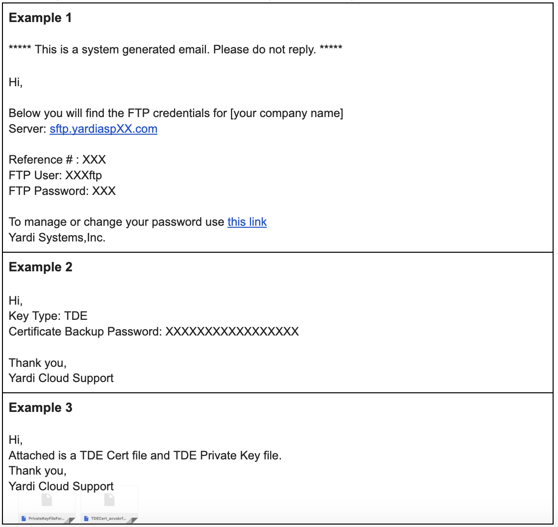
Important Info !!!
NOTE: if no response is received or if user login credentials are provided (sometimes Yardi support mixes up user login credentials with backup account credentials), the Yardi admin or appropriate person should send the submitted ticket to their account representative and ask for the request to be escalated.
NOTE: if Yardi does not send the encryption key, it is possible the setup process will fail after the credentials are input into the Revolution RE system. In such cases, please ask Yardi again to send the private key, a TDE certificate, and a decryption password. If the database is NOT encrypted, the private key, a TDE certificate and decryption password do not need to be added to the Revolution RE system and the setup process will succeed.
If received, the Yardi admin should save the emails received in Step 2 for the Revolution RE setup step below.
*** If this is the first time the Yardi Admin is requesting access to their company’s Yardi backup, the credentials received may include a Temporary Password and will need to be changed by going to https://www.yardiasp.com/ypwdchange
This password will need to be updated every three months, and the credentials will need to be updated in the Revolution RE system or a data failure will occur. Revolution RE can send automated reminders at your request.
Step 2: Create a Property List in Yardi for Revolution RE
The Yardi administrator user should now Login to Yardi and create a property list:
- Go to Setup > Property > Review Property List
- The Admin User should select ‘All Active Properties’ and save the Property List as .joyhub
- If, however, there are only specific properties (i.e., not all properties) that should be shared, please select the properties added to the Property List and make note of the Property IDs - these will need to be added to the Revolution RE system.
- Note that future properties will not be dynamically added OR removed from the property list and will need to be manually added / removed by the Admin User.
→ Steps Within the Revolution RE System
——————————————
Step 3: Send Backup Credentials to your Account Representative or Input them Directly Into Revolution RE
The final step for setup of Yardi properties in the Revolution RE system is to add the credentials that were created for the Yardi backup into the Revolution RE system. Either the Admin User or other individual will need an account created in Revolution RE in order to do so.
1. Login to Revolution RE, an individual may request admin credentials by emailing support@revolutionre.com if you do not have an account created.
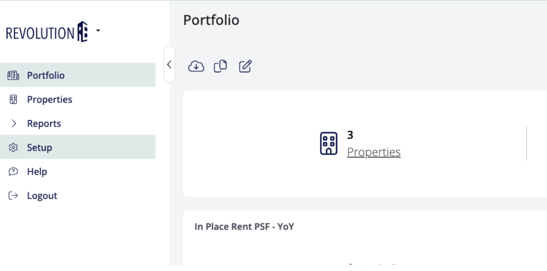
2. Once logged in, the individual should click on the Setup tab on the left.
3. Click on Manage Integrations on the right side of the screen
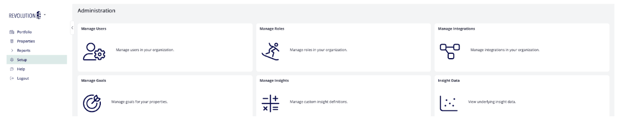
4. Click on the + button to Add Integration

5. Select Yardi
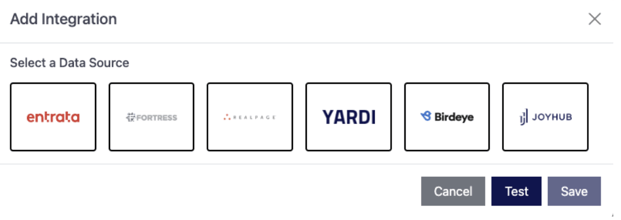
6. The following modal will open, select backup
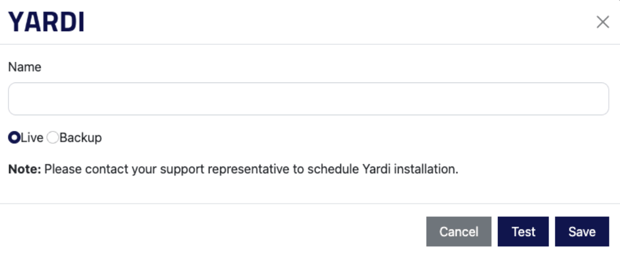
7. A larger modal will open, this is where the user will input the information requested from Yardi in Step 1-2 above:
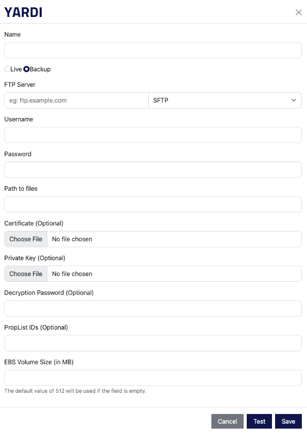
8. Name: Type in [CLIENT NAME] - Yardi
Replace CLIENT NAME with your company name. Example: Smith Residential - Yardi.
9. FTP Server: Type in the SFTP server that is included in one of the emails provided by Yardi to the Cloud Admin above.
10. Username: Type in the Yardi username that is included in one of the emails provided by Yardi to the Cloud Admin above.
11. Password: Type in the password that is included in one of the emails provided by Yardi to the Cloud Admin above.
12. Path to files: Type in “/” , this will retrieve the path to the files.
13. If the Cloud Admin user received a Certificate attached to the email from Yardi, this should be uploaded in the space provided.
14. If the Cloud Admin user received a Private Key attached to the email from Yardi, this should be uploaded in the space provided.
15. If the Cloud Admin user received a Decryption Password in the email from Yardi, this should be copied into the space provided.
16. Property List: Leave blank if ‘All Active Properties’ have been selected. If a limited number of properties were selected for the Property List, please type in the IDs for each property on the properly list into the interface in the space provided.
17. EBS Volume Size: ONLY IF the Cloud Approved user is aware of a database size greater than 512 MB, please input the size in the space provided.
18. Click on the Test button. If the credentials are accurate, all tests should pass. If not, please email a screenshot to support@revolutionre.com. If the tests do pass, click on Save.
The Yardi property setup should now be complete. In 24 hours or so the property data flow should have begun and/or be nearly complete.
Please note the following:
- If you have a large database (over 512 MB) timeouts do occasionally occur. Please let us know so we can plan accordingly.
- Passwords for Yardi backups do need to be reset every 90 days. A reminder will be sent out to you from the Revolution RE system in advance of the reset date. If the password is not reset and the updated password provided to Revolution RE, a failure in the backup may occur and data will be delayed in populating the system.