![Logo No Shadow Horizontal.png]](https://info.apartmentsnapshot.com/hs-fs/hubfs/Logo%20No%20Shadow%20Horizontal.png?height=50&name=Logo%20No%20Shadow%20Horizontal.png)
To add property data to the Revolution RE platform using the Yardi Report Scheduler process, we have a series of 13 custom reports.
rs_sql_Rev_Applicant.txt
rs_sql_Rev_Concessions.txt
rs_sql_Rev_Delinquency.txt
rs_sql_Rev_LeaseHistory.txt
rs_sql_Rev_PropertyAmenity.txt
rs_sql_Rev_PropertyInfo.txt
rs_sql_Rev_Resident.txt
rs_sql_Rev_ResidentHistory.txt
rs_sql_Rev_Unit.txt
rs_sql_Rev_UnitAmenity.txt
rs_sql_Rev_UnitHistory.txt
rs_sql_Rev_UnitStatus.txt
rs_sql_Rev_WorkOrder.txt
A Yardi system administrator at the Yardi licensee for the subject properties will need to install and schedule sending the custom reports to Revolution RE. Please see below the steps to follow for using the Yardi Custom Report process.
Step 1: Upload Custom Reports to the Yardi System
- From the Voyager System Administration side menu, select Admin > Correspondence Configuration > Correspondence Document Manager. The Correspondence Document Manager screen appears. In the Upload Merge Template section, click the Choose File button.
- Select the report, and then click Open. The report file name appears in the Template field.
- Click Upload. You must select each report individually to upload, so you will do this process 13 times.
Step 2: Create Report Packet
- On the Voyager System Administration side menu, select Admin > Report Scheduler > Add Report Packet. The New Report Packet screen appears.
- Complete the screen: Name & Description of the report packet. Click Save.
- The Report Packet screen appears. Add report files to the packet: Click Add Report Files.
- Select the report files that you want to add to the report packet. Search by sql_rev and there are 13 reports being installed. Click OK.
- The File or Script grid appears on the Report Packet screen, showing the reports that you added. For each report in the File or Script grid, you must set up filter criteria by clicking OK on each one individually.
- Click the Filter button. The Distribution Report Filter screen for that report appears. Add the date information and other selection criteria that you want to apply to the report. Click OK. For filter information for each report, refer to Section V.
- Click Save on the Report Packet screen.
Step 3: Add Distribution Member
1. On the Voyager System Administration side menu, select Admin > Report Scheduler > Add Distribution Member. The New Distribution Member screen appears.
2. Complete the screen.
- Enter Code, Last Name, and email address [provided by Revolution RE per above]
- Make sure to check the Active box.
- Enter property or property list.
- Select the RevReports Report Packet.
3. Click Save.
Step 4: Add Report Scheduler Event
- On the Voyager System Administration side menu, select Admin > Report Scheduler > Add Scheduler Event. The Create New Scheduler Event filter appears. On the filter screen, select a distribution member and the report packet that you want to associate with the Report Scheduler event. (You must have previously selected this report packet on the Distribution Member screen for this member.) Click Submit.
- The Report Scheduler Event screen appears, displaying the distribution member and report packet information. Complete the screen, especially the email address for where you want the reports to go.
- To set up an event date and time schedule, click Dates. The Scheduler Event Dates screen appears. Select Every DAY at 1am EST [any time between 11pm ET - 3pm ET is fine], input 100 for Months.[This is an arbitrary number, we request 12 months at a minimum.]
- On the Scheduler Event Dates screen, click Save.
Step 5: Add Report Filters
On packet report filters, filter fields that appear are determined by the report or script files. Complete them as needed. You must complete the mandatory fields before you can save the report packet.
Property field: The Property field is a placeholder, and the property codes selected on the Distribution Member screen will apply to this filter field when a Report Scheduler event is run to generate the reports in the packet.
Date fields: For financial and other date-related reports, date fields are configured as “offset” days from today’s date, not actual dates or normal date ranges. You set the report date range or as of date by selecting how many months or days before and after the system date that you want the report data to cover. You can configure the report to run on a prior or future date by selecting the “+” or “--” signs preceding the number of months or days that you specify. For example, if a report packet should be processed for last month’s financial data, you would type - 1 in the Months field. If you want to specify the current system date, type the value 0 (zero).
Below is a list of the reports in the report packet along with any associated filters.
All reports should be in EXCEL format:
- Applicant/Prospect Report: This report will pull all applicants and the filter does not need to be updated.
- Concessions: Add Tenant Status ‘Current’. Click ok to confirm.
- Delinquency: Add Tenant Status ‘Current’ and leave the Date Occurred filter at ‘None’, it will bring in all records.
- Lease History: Add Tenant Status ‘Current’ and leave the Date Occurred filter . at ‘None’, it will bring in all records.
- Property: No additional filtering is needed, but you must open the filter and click ok to confirm.
- Property Amenities: No additional filtering is needed, but you must open the filter and click ok to confirm.
- Rent Roll - Tenant/Resident: You can filter by Tenant status, select all and click ok to confirm.
- Resident/Tenant History: You can filter by Tenant status and by Date Occurred. Select all for Tenant Status and Leave the Date Occurred filter at ‘None’, which will bring in all historic records. Click ok to confirm.
- Unit: No additional filtering needed, but you must open the filter and click ok to confirm.
- Unit Amenities: No additional filtering needed, but you must open the filter and click ok to confirm.
- Unit History: You can filter by Event Date. If you leave the Event Date filter at ‘None’, it will bring in all history records.
- Unit Status: You can filter by Date Occurred. If you leave the Date Occurred filter at ‘None’, it will bring in all records.
- Work Orders: You can filter by Status, Call Dates, Scheduled Dates, or Completion Dates. If you leave all the date filters at ‘None’, it will bring in all work orders.
Step 6: Sending Financial Reports
Using the Revolution RE property list created above, create a financials report packet using your existing trailing twelve financial reports in your Yardi Financial Analytics. Please include the following:
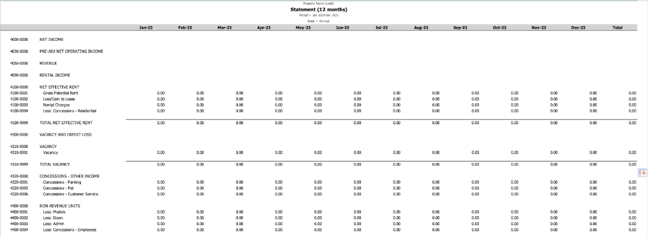
- 12 Month Statement: The Monthly profit and loss (accrual) financials [also called a financial statement or a trailing 12 month statement - see image below)] starting at the date the property was onboarded into the Yardi system or, at a minimum, the prior 2 years;
- Filter: +0 and -24 months
- 12 Month Budget: Monthly budgeted profit and loss financials for the next 12 months or until the current year end (NOTE: the budget should share the same account tree as the accrual financials and the report should look the same. We cannot ingest the 12 Month Actuals-Budget so that will fail if sent.);
- Filter: +0 and +12 months
- Schedule the financials to be sent daily at the same time as the other report packet is scheduled to be sent - the reports should be in EXCEL file format;
- Please include the account codes and show all rows, even if blank;
- Per Step 1 above, schedule the financials and budgets to go to: [XXX]@inbox.joyhub.io
If you have any issues with the above steps, please email support@revolutionre.com with questions.
NOTE: Revolution RE is not an approved integration partner with Yardi, this process is provided to our clients as a method of requesting / receiving their property data for use in the Revolution RE system.